Interfaces
Hostveil has three faces: a terminal UI, a localhost web dashboard, and a scriptable CLI. All three are thin layers over one shared engine. Whatever you scan, fix, or roll back in one is reflected in the others.
TUI: the default
Running hostveil with no arguments on an interactive terminal opens the keyboard-driven TUI. You can also launch it explicitly:
hostveil # or: hostveil tuiIt shows the score and findings with severity and domain filters, multi-select for batch fixing, plain-language detail, and a fix preview before anything is applied. While a scan runs it names the domains still working, so a slow CVE scan on a host with many images reads as progress rather than as a hang.
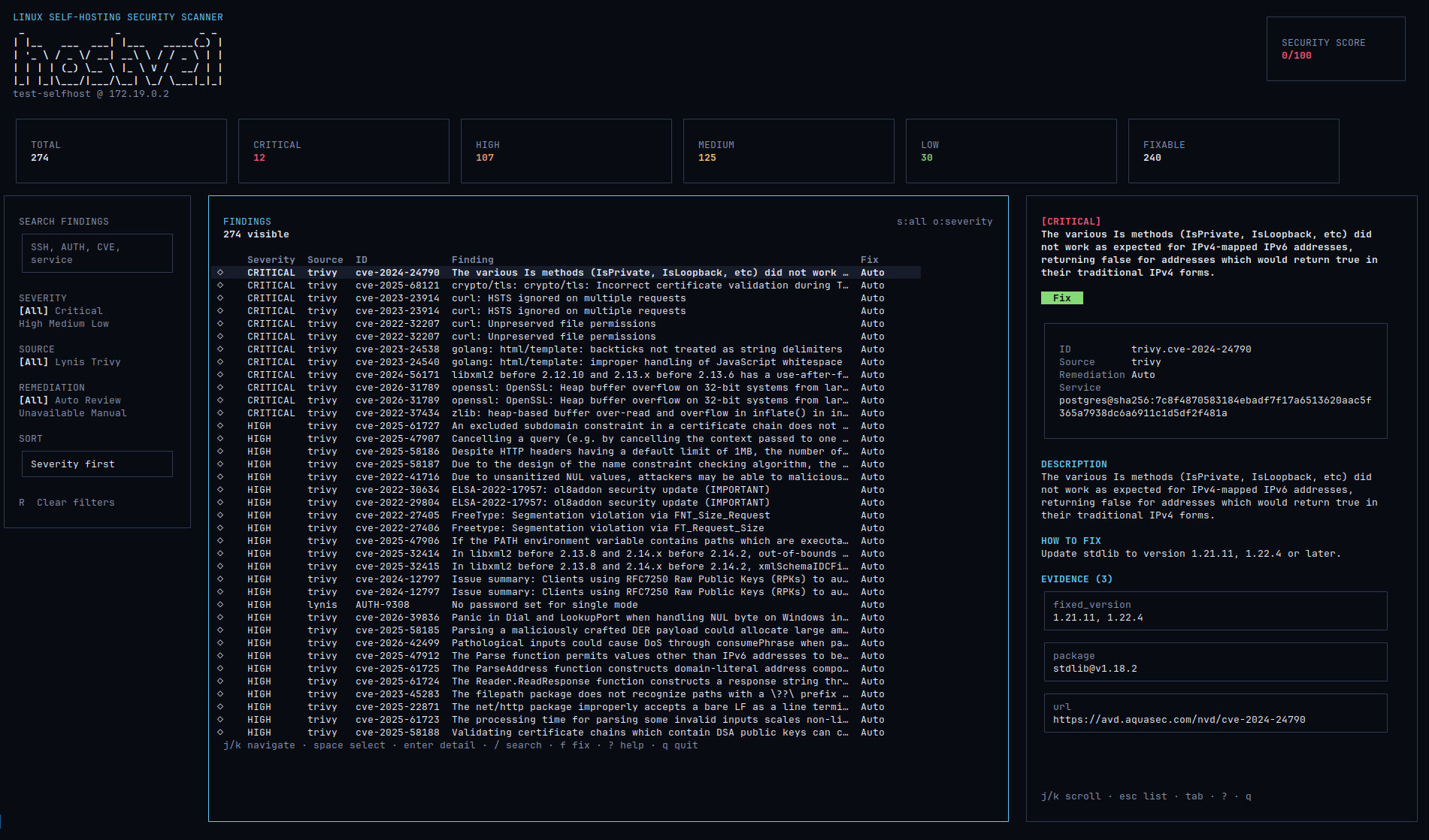
The TUI requires an interactive terminal. If stdin/stdout are piped or redirected, use hostveil scan instead, which prints a plain report.
Keys
The bottom two lines of the screen always list the keys for whatever you are looking at. In full:
| Key | In the list |
|---|---|
↑ ↓ | Move the cursor. k and j work too. |
Enter | Open the finding's detail: description, how to fix, and whether it can be fixed for you. |
f | Preview the fix for the finding under the cursor, then y to apply or n to cancel. A Review fix offers numbered alternatives; press the number. |
Space | Mark an Auto finding for a batch. Only Auto rows can be marked, and a row already applied and waiting on a restart is not one of them. |
a | Apply the marked findings, or every Auto one, if nothing is marked. |
s | Cycle the minimum severity: High → Medium → Low → off. |
d | Cycle the domain filter through the domains this scan actually found something in. |
x | Show only findings Hostveil can fix. |
c | Clear every filter. Esc clears the batch marks. |
h | Applied-fix history. Pick one and press Enter to see what rolling it back would restore, then confirm. If the file has changed since the fix wrote it, the rollback is declined and you are asked whether to overwrite anyway; only y does it, and it cannot be undone. The screen also carries a sparkline of the score across every saved scan, so the list of what was changed sits next to whether it helped. |
e | In a finding's detail: add an advisory AI explanation (Ollama by default; see AI explanations for an external API). Without a provider reachable, a one-line note appears instead. |
t | Theme picker (below). |
l | Arrangement picker, temporary. Six arrangements of the same screen ship behind it so one can be chosen; the default is the one in the screenshot above. In the severity-lane arrangement, m selects every Auto finding at the cursor's severity, handing them to the batch. The same thing the dashboard's per-lane button does. |
r | Rescan. |
q | Back, or quit from the list. Ctrl-C always quits. |
Anything that changes the host, whether applying a fix or rolling one back, shows you the diff and asks first. There is no key that writes to disk without a preview in front of it.
What a row says
Each row carries the severity, the kind of fix, the finding id, the title, and the service it is about. The kind column is the one to scan down: AUTO in green means Hostveil can apply it unattended, REVIEW in the accent means it will ask you to choose, and MANUAL or N/A in grey mean there is no button to press.
A fifth value appears only after you have applied something: PEND, in the accent. The fix is written and the host has not read it yet — a Compose file waiting on a recreate, a systemd drop-in waiting on a reload. The row stays on the list because the score still charges it, and it stops being markable, because there is nothing left to apply. The sentence under the finding names the command that puts it in force.
Web: the localhost dashboard
Serve the same scan over HTTP when a browser is better for review:
hostveil serveIt prints a URL carrying a one-off access token. Open that exact URL. Loopback keeps the dashboard off the network, but not away from other accounts on the same machine, and every route here applies fixes or reads a scan of /etc/shadow as root. The token closes that gap; the first page load exchanges it for a session cookie, so it does not reappear in later links.
It binds to 127.0.0.1:8787. The dashboard rejects any request not addressed to localhost, so --addr cannot expose it to the network: pointing it at a non-loopback address produces a listener that refuses anything addressed to this machine by IP or hostname, though a forwarded port still reaches it. To reach it from another machine, forward the port instead: ssh -L 8787:127.0.0.1:8787 you@server. (hostveil web is an alias for serve.)
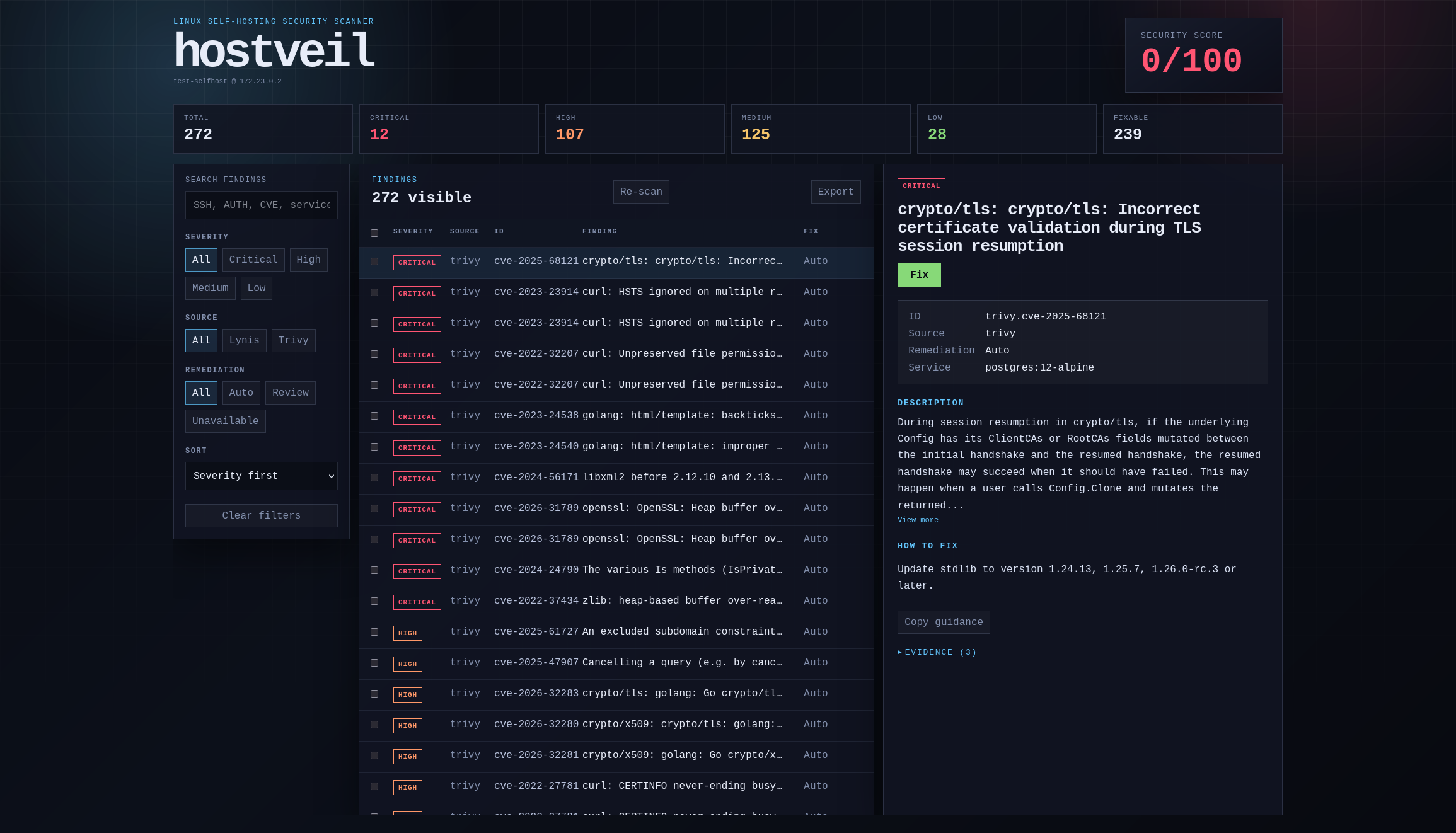
Before you pick anything, the right-hand pane reads the scan back to you: the score in words, how the findings break down by severity, how many can be fixed with no decision from you, and the most severe handful as a jump list. Selecting a finding replaces it with that finding's detail and a Preview fix button; History puts every applied fix there instead, each with the diff it would revert and a Roll back button.
The chips above the list filter by severity and domain with live counts, and the checkboxes select findings for one batch fix. Everything writes through the same engine as the CLI, so hostveil history in a terminal lists what you did in the browser.
Since the last scan
Hostveil saves each scan, so the next one can say what moved. When anything has, both UIs show a one-line summary above the findings. ✓ 12 resolved, + 2 new, ~ 1 changed, which is the fastest way to answer "did that round of fixes actually help?". Nothing is shown on a first scan, because there is nothing to compare against.
Just under it, either UI names any domain that could not be fully checked. A score built from a partial scan keeps saying so rather than flashing the notice once. See when a domain can't be fully checked.
CLI: scriptable
The scan, fix, rollback, and history subcommands work non-interactively. scan --json emits machine-readable output, and scan exits non-zero when any unfixed finding is High, so it slots into CI or a cron job:
hostveil scan --json > report.json
hostveil fix --all --yes
See the CLI reference for every command and flag.
Themes
The TUI and the dashboard ship five color themes: onedark (the default), gruvbox, nord, catppuccin, and tokyonight. They share one palette definition, so a theme looks the same in the terminal and in the browser.
In the TUI press t to open the picker: the arrow keys preview each theme in place, Enter keeps it, and Esc puts back the one you had. Your choice is remembered for the next run. The dashboard has the same list in its status bar and remembers it per browser.
hostveil tui --theme nord
hostveil serve --theme gruvbox
HOSTVEIL_THEME=tokyonight hostveil
--theme and HOSTVEIL_THEME both override the remembered choice. Colors mean the same thing in every theme: the severity steps, the score bands, , and safety, so nothing about a theme changes how a finding reads.
Symbols
The TUI and hostveil scan draw their status markers, meaning the brand mark, the check, the warning, and the three ways a domain , from plain Unicode (plain), which renders in any font. If your terminal already uses a Nerd Font, --glyphs nerd swaps them for the patched icons.
hostveil tui --glyphs nerd
hostveil scan --glyphs nerd
HOSTVEIL_GLYPHS=nerd hostveil
It is opt-in rather than detected, because a terminal cannot be asked what font it is using and a glyph the font lacks is drawn in the same single cell a present one would be, so guessing wrong is a row of tofu with nothing to notice it. Any Nerd Font build works, Mono or not: the symbols come from the Font Awesome block, which every patched font carries and which stays one cell wide in every variant. Like --theme, the choice is remembered for the next run, and --glyphs and HOSTVEIL_GLYPHS both override it.
Because the interfaces share a single fix-and-rollback engine, behavior is identical across them: a fix applied in the browser shows up in hostveil history and is reversible from the terminal, and vice versa.